Configure the payment gateway
For the payment gateway to work correctly and carry your business's brand identity, you need to configure the basic settings on the Tingee Merchant Portal.
1. Open the configuration page
- Go to the Developer page on the Tingee Merchant Portal (login required).
- Select the Payment configuration (Payment Gateway) tab.
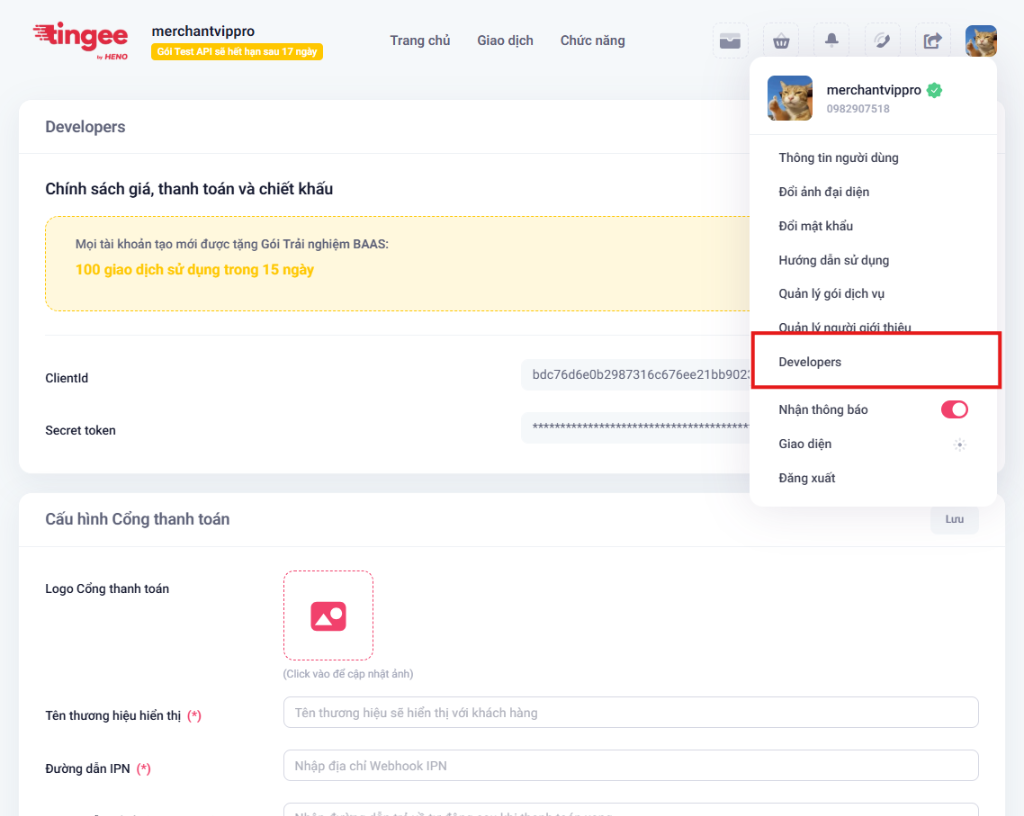
2. Settings to configure
Here, you need to set the following parameters for the payment gateway to work:
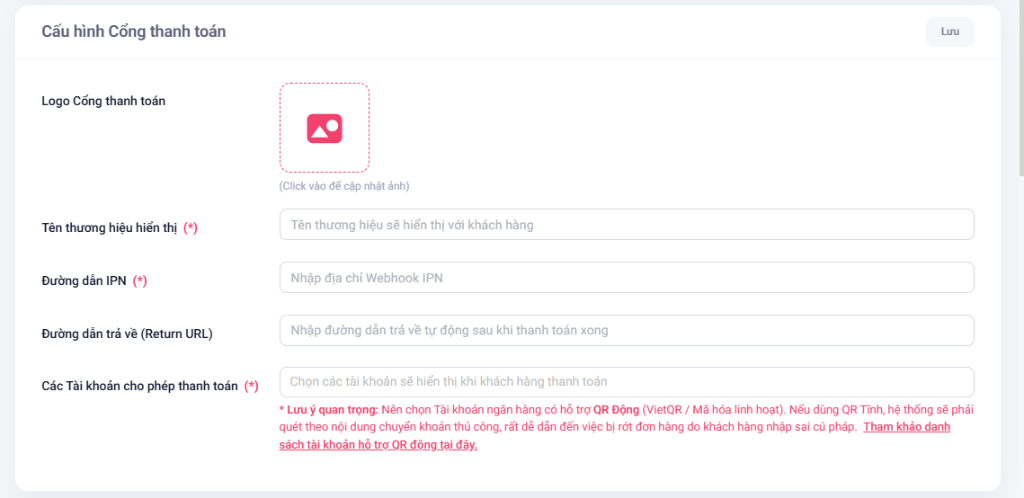
2.1. Payment gateway logo
- Description: Upload your business's logo image. This logo is displayed prominently on the payment page.
- Requirements:
JPGandPNGformats are supported, maximum size 2MB. The recommended aspect ratio is 1:1.
2.2. Display brand name (*)
- Description: The business or shop name shown on the payment gateway so customers can recognize you.
- Required: Yes.
2.3. IPN URL (*)
- Description: The URL of your server where Tingee sends transaction status notifications (Webhook).
- How it works: The Tingee system sends the order data (via HTTP POST) to this address whenever the status changes (Successful, Expired, Cancelled). In particular, for static QR transactions, if the customer transfers money after the order has expired or been cancelled, the system still sends a Webhook recording the actual status (Expired-Successful, Cancelled-Successful) or duplicate transfers (Duplicate).
- Required: Yes.
- Note: The URL must be public and reachable from the Internet (do not use
localhost). During development, you can use tools such as webhook.site to receive test Webhooks.
2.4. Return URL
- Description: The URL (or App Scheme) that takes the customer back to your website/app after payment.
- Required: No (if you send
returnUrlthrough the Create payment link API, the system uses the value from the API instead).
2.5. Accounts allowed for payment (*)
- Description: Select the accounts shown to customers when they pay on the gateway.
- Required: Yes.
- Important: Choose bank accounts that support dynamic QR (VietQR / flexible encoding). With static QR, the system has to match payments by the transfer description, which easily leads to missed orders when customers enter the wrong syntax.
3. Save the configuration
After filling in all the information correctly, click Save. The system updates immediately, and payment links created afterwards automatically use the latest configuration.